
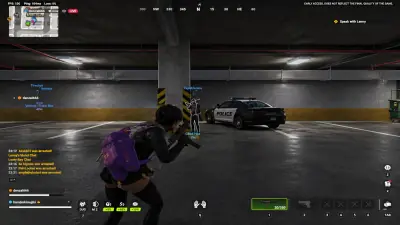
ROB RUN Vehicle ESP: Empty Cars, Locks and Fuel Explained
Learn what occupancy, ownership, lock state and fuel readouts tell you before choosing a vehicle in Looty Bay.
Start with the question you need answered
Looking for a vehicle during a chase is different from checking a parked car near a heist. In the first case, occupancy and fuel may matter most. In the second, ownership, lock state and cargo information can be more relevant. ROB RUN Vehicle ESP provides separate readouts for these questions, so there is little reason to show every field for every car.
The main product breakdown documents the available vehicle options. This guide explains how to read them together. It does not claim a particular filter combination is fastest or that a marked vehicle can always be entered.
Empty does not mean free or unlocked
The empty and occupied filters describe whether a vehicle has occupants. Owner or free status describes ownership, while locked or unlocked is another field. An empty vehicle can therefore still have an owner or a lock. Read all three pieces of information before treating the marker as a usable getaway car.
The menu also has Police, Robber, Civilian and Unowned role filters. Those categories tell you what kind of vehicle is being displayed. The available documentation lists these filters but does not establish every interaction between them, so check the current menu rather than assuming one switch overrides another.
Fuel and health answer different practical questions
A fuel readout helps distinguish a car with little fuel from one with more available. Vehicle health describes its condition. Neither value is a promise about how far the car will travel or how much damage it will withstand. Avoid turning the displayed percentage into a fixed escape distance or survival estimate.
Speed, engine and cargo readouts are also listed. Add a field because it helps with the situation in front of you, rather than because the menu offers it. A smaller set of useful values is easier to scan than a block of labels that all need interpreting at once.
Choose boxes and distance limits for legibility
Vehicle ESP includes 2D and 3D boxes, a maximum distance and the option to hide your own vehicle. Hiding your own car can remove a marker you already understand. A shorter display distance can keep nearby cars distinct when a street contains many parked or occupied vehicles.
There is no verified universal distance or preferred box style for every player. Compare how the styles look on your display and choose a range that makes the labels readable. Garage and spawn markers are available too, but a marker should not be treated as a guarantee that a vehicle is currently accessible there.
Use radar for the wider view
The 2D radar can include vehicles as well as players and selected world objects. Vehicle ESP gives details on screen; radar offers another view of where selected markers sit around you. Range, size, zoom and distance rings help you choose how much surrounding information to display.
Keep player roles in the picture when interpreting cars around an objective. The role filter guide explains the distinction between player labels, aim exclusions and vehicle categories. A vehicle ownership label does not tell you every detail about the players nearby.
Save the setup, then recheck after changes
Use the Config System to save and load your settings. Keep menu, panic and Battle Mode keys accessible, and remember that Battle Mode hides world labels during combat. A change in the display can come from the mode you enabled rather than a missing vehicle.
Rob Run Cheats is for Steam on Windows 10 or 11, with the listed security settings enabled and Cloud DMA required for full functionality. Check the requirements checklist and current status notices after updates. Saved settings do not confirm that an older feature behaves identically on a changed game build.