
ROB RUN role filters: cops, robbers, civilians and NPCs
Learn how Player ESP, aimbot exclusions and vehicle roles answer different questions in Looty Bay.
Read the role before reading the rest
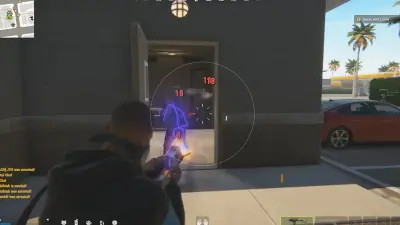
Player ESP can label Criminal, Cop, Civilian and NPC. In a busy area, start with who a marker represents before adding every available stat. Police highlighting and wanted or heat state add context, while name or alias and clan tags help distinguish players within the same role.
Keep visual filters separate from target selection
Player ESP controls what you see. Aimbot role filters control which targets the aim tool considers. The aimbot can include or ignore cops, robbers, civilians and NPCs and skip teammate or clan targets. Hiding teammates in the visual settings is a different decision from excluding them in aim settings; inspect both groups rather than assuming one configures the other.
Add only the status details you need
Health and armor are useful for reading a player’s condition. Held items and action labels distinguish shooting, running, reloading, arrested and downed states. Vehicle occupancy tells you when a player is inside a car. Distance limits, fading and visible or hidden colors help keep those details readable.
Use vehicle roles for the vehicle question
Vehicle ESP filters Police, Robber, Civilian and Unowned vehicles. Ownership and lock state describe access; occupied or empty filters describe whether someone is inside. They answer different questions, so a free vehicle should not be confused with an empty one. See the full Vehicle ESP options before arranging the readouts.
Switch to a combat view when needed
Battle Mode hides world labels and keeps enemies visible, with a clan battle side filter. It reduces the information on screen without making every world marker part of the fight. Save your preferred arrangement with the Config System. Choose FOV and Smooth to suit the targets you want to include; no universal ideal setting is claimed.